How to Do a Giveaway With Streamlabs (and a Simpler Option)
If you already stream with Streamlabs, its giveaway tool is built into Cloudbot, and for a merch giveaway it has a trick no other bot offers: the winner gets a redemption link and picks their own size and shipping details. If you need a fair open draw with a record you can show anyone, a Twitch chat picker is simpler. The difference is not the price — Cloudbot giveaways are part of Streamlabs — it is who can enter, and what proof you get at the end.
The short answer: use a Streamlabs giveaway when you sell merch through Streamlabs, or when your regulars already have loyalty points to spend. Use a chat picker when the draw must be open to everyone, equal, and provable. This guide covers both, starting with Streamlabs, because that is the tool you asked about.
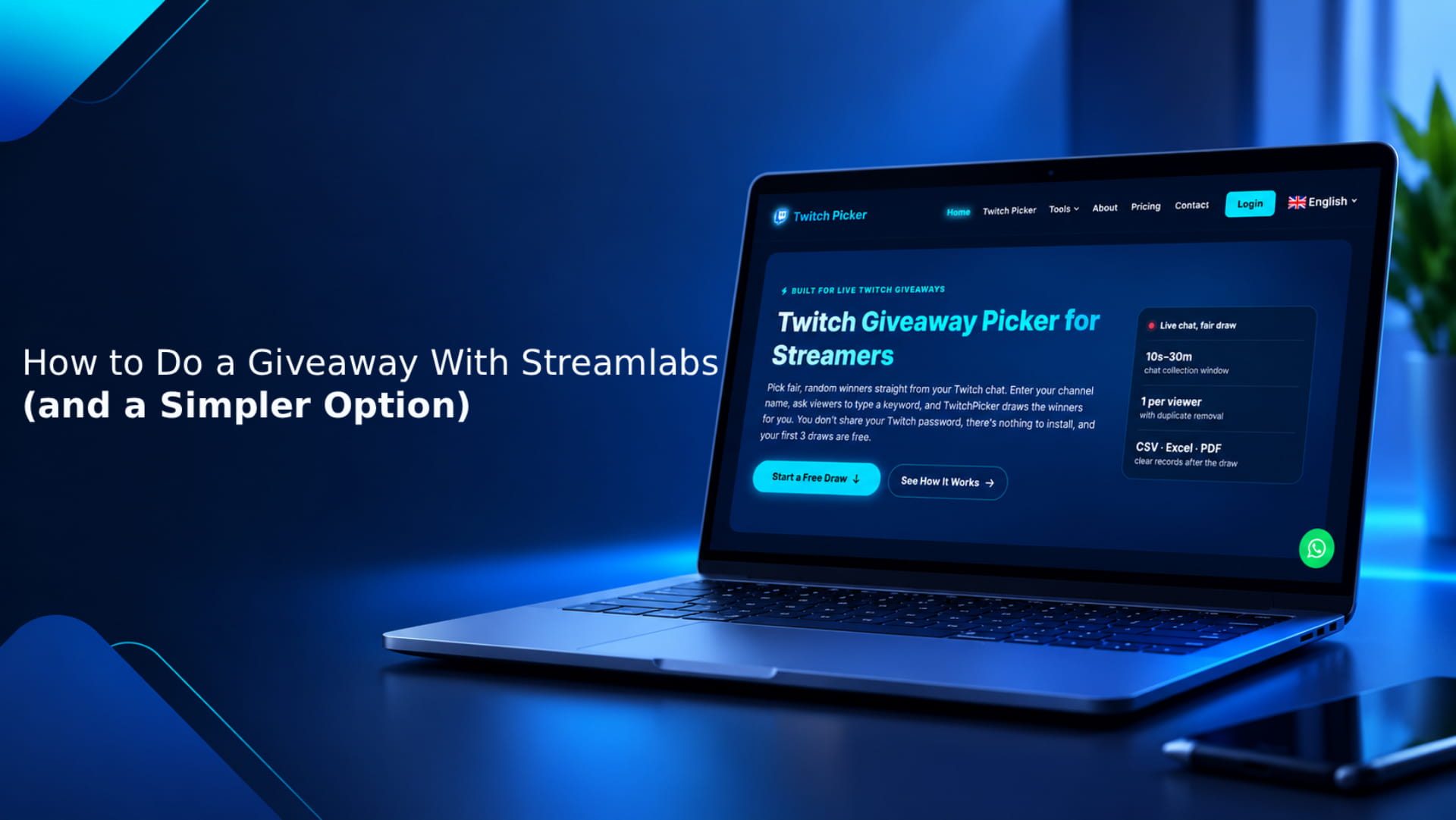
TwitchPicker is the Twitch Giveaway Picker for Streamers. Pick fair, random winners straight from your Twitch chat. Enter your channel name, ask viewers to type a keyword, and TwitchPicker draws the winners for you. You don't share your Twitch password, there's nothing to install, and your first 3 draws are free.
First, Turn On Cloudbot and give it moderator access
Streamlabs giveaways run through Cloudbot, not through the desktop app, so the first step is to turn Cloudbot on. Log in at Streamlabs, open Cloudbot in the left-hand menu, and click the toggle on. Then give the bot moderator permissions in your Twitch chat by typing /mod streamlabs in chat. Without the moderator role, Cloudbot cannot run commands or announce the giveaway.
The giveaway commands are on by default. To check, open the Commands tab, then Default, and scroll down to Giveaways. If you use the desktop Streamlabs Chatbot instead of Cloudbot, the commands are different: !giveaway start begins a giveaway, !giveaway close closes entries, and !giveaway winner picks a winner at random. This guide is about Cloudbot, because that is the giveaway most Streamlabs streamers use, and the one the plan asks for. Do not mix the two sets of commands: a desktop command typed into a Cloudbot setup does nothing, and a Cloudbot command typed into the desktop bot does nothing either.
Merch or Custom: Pick Your Prize Type First
A Cloudbot giveaway starts as a saved profile, and the first choice is the prize type. Open Cloudbot, go to the Giveaways tab, and click Add Giveaway Profile. You get two choices: Merch and Custom.
Merch gives away an item from your Streamlabs merch store. The item must already be listed in the store before you create the giveaway, and for a merch giveaway you need to have purchased the item you would like to give away. A merch giveaway allows only one winner. After the draw, the winner receives a unique redemption URL and enters their size, colour, and shipping details, and you complete the giveaway after the winner confirms the claim. That redemption flow is the reason to use Streamlabs for a merch prize: you never handle addresses in chat, and the winner picks their own details.
Custom gives away any prize you describe: a game key, a gift card, a piece of hardware, or anything else. You write the prize description in the profile, specific enough that viewers understand what they could win. A custom giveaway allows up to 10 winners per giveaway, so it is the type to use when you want several winners from one draw, or when the prize is not in your merch store.
Choose Custom if you want flexibility over the prize or need more than one winner. Choose Merch if the prize is an item already in your Streamlabs merch store and you want the redemption process to handle delivery details for you.
Step by Step: Set Up a Custom Giveaway
Here is the full setup for a custom giveaway, the type most streamers will use.
First, write the rules before you open entries: the prize, who can enter, the entry command, when entries close, and the claim deadline. Publish them where viewers can read them, and do not change them once entries open.
Second, in the Giveaways tab, click Add Giveaway Profile and choose Custom. Give the profile a name, describe the prize, and set the basics: a timer, if you want entries to close after a set time, and permission, which can be Everyone, Subscribers Only, or Subscribers and Moderators. Save the profile so you can reuse it for the next giveaway — Streamlabs lets you start a saved profile again, and you can edit the prize description if the next prize is different.
Third, look at the advanced settings before you start. Must Be a Follower to Win stops non-followers from winning, though they can still enter. Ticket Cost assigns a loyalty-point cost to entries, if you use the loyalty system. Maximum Tickets per User caps how many tickets one viewer can hold. Luck, and the subscriber and non-subscriber bonus ticket fields, give extra tickets on entry. Each of these changes who can win, so state them in your rules before entries open, not after the draw.
Fourth, start the giveaway. Find the saved profile and click Start Giveaway. Cloudbot announces it in chat, and viewers enter by typing !raffle — that is the default entry command, and you can change it in Giveaway Settings, but !raffle is the command your viewers will meet unless you tell them otherwise. Watch the entrant list and ticket counts in the dashboard while the giveaway is open, and close entries early if you need to, or let the timer run out.
Fifth, draw the winner. After entries close, click Pick a Winner. The winner is tagged and announced in your stream chat, and their recent chat messages appear in the dashboard so you can verify them or reroll before confirming. For a custom giveaway you can pick up to 10 winners; for a merch giveaway the limit is one. Contact the winner privately, from your own account, with the claim deadline and the detail you need to send the prize, and announce the winner publicly only after you have checked them and contacted them.
You can also view past giveaways. In the Giveaways tab, click Giveaway History to see past giveaways, winners, and entry counts — useful when a viewer asks who won last time, or when you want to reuse a profile that worked well.
The ! raffle Trap: The Same Word Does the Opposite Job Elsewhere
!raffle is the most confusing command on Twitch, because the same word does opposite jobs depending on the bot. In Streamlabs Cloudbot, !raffle is the entry command: a viewer types it to enter your prize giveaway. In StreamElements, !raffle is a moderator command that starts a points raffle, and !sraffle starts a single-winner one — a viewer typing it enters nothing.
If you have just switched bots, re-read the commands for the bot you are using now, and update the rules message, the overlay, and any chat command that mentions the old entry method before your next giveaway, not during it. A viewer who types the wrong command in the wrong chat will think they entered when they did not, and they will be angry when the winner is drawn. The full command-by-command difference is covered in the guide to Twitch giveaway commands.
Streamlabs' Limits: What It Cannot Do
Cloudbot giveaways are good at what they are built for, and their limits show as soon as you want something else.
Entry is ticket-based, tied to the loyalty points system. Viewers buy tickets with points they earned from watch time, and you set the ticket cost, luck, and bonus tickets. A pure open raffle, where anyone in chat has the same chance for free, is not the native flow — a new viewer with no points cannot enter when the ticket cost is above 0, and a regular with points saved up can hold more tickets than a newcomer. That is a reward for loyalty, not an equal draw, and you should say so in the rules.
There is no native giveaway-winner overlay. You pick the winner in the dashboard and announce it yourself, and the winner's recent chat shows so you can verify them. There is no winner certificate and no entry export in the documented flow, so if a brand asks for the entry numbers, or a viewer asks how the winner was chosen, you have the Giveaway History page and what chat saw — and nothing else to show them.
The winner limits matter too: custom giveaways cap at 10 winners, merch giveaways at one. If you want more winners than that from a single draw, or a draw where every entrant has exactly the same chance, Cloudbot is not the tool for it.
The Simpler Option: A Keyword Draw With a Chat Picker
A Twitch chat picker does the same job as a Cloudbot custom giveaway, with the parts Cloudbot leaves out. You enter your channel name, set a keyword, and open entries for a window you choose, from 10 seconds to 30 minutes. Viewers type the keyword in chat, and each viewer gets one entry — one entry per viewer, no matter how long they have watched or how many points they have. When the window closes, the picker draws a random winner with a cryptographically secure random draw, live on stream.
The differences are the ones that matter for a bigger prize. You can filter entries: exclude words, require a minimum message length, ask viewers to tag a friend, or use an unusual keyword that bots cannot guess. You get a winner certificate and an entry export as a CSV, Excel, or PDF file, along with engagement stats from the draw — the record Cloudbot does not produce. And the draw is equal by design: every entrant has exactly the same chance, with no extra tickets for subscribers or regulars unless your rules say otherwise.
The mechanics — why picking by hand is unfair, how duplicates are removed, and how the draw works — are explained in the guide on how to pick a random winner from Twitch chat. For the full process, from prize to delivery, read the guide on how to do a giveaway on Twitch.
When to Use Streamlabs, and When to Use a Chat Picker
Use a Streamlabs giveaway when the prize is merch from your Streamlabs store, when your regulars already have loyalty points to spend, or when you want to reuse a saved giveaway profile every week. It suits streams where Cloudbot is already running, where viewers understand the points system, and where the giveaway is a regular feature rather than a one-off event.
Use a chat picker when the draw must be open to everyone, equal, and provable: a big prize, a milestone or holiday giveaway, a first giveaway on a new channel, a sponsored giveaway where a brand will want the entry export and the winner certificate, or any draw where a first-time viewer should have the same chance as a regular. It also suits a fast drop in the middle of a stream: open entries for two minutes, draw live, announce the winner, and move on.
The wider comparison, including StreamElements and Nightbot, is in the guide to the best Twitch giveaway tools. The Nightbot comparison is the closest to this one: a moderation bot's giveaway panel against a keyword draw, and it is worth reading in the guide on how to do a giveaway with Nightbot before you choose a tool for your next big prize.
Mistakes to Avoid With a Streamlabs Giveaway
The most common mistake is hiding the ticket cost. If entry costs points, say so before entries open. If entry is free because the ticket cost is 0, say that too — it is the best news in the whole giveaway, and viewers who do not know it will not enter.
The second mistake is making entry depend on paying. A subscriber-only giveaway, or a draw where only paying viewers can enter, can turn a giveaway into a lottery in many places. Keep a free way in with the same chance, and offer subscriber perks that are not prizes. The rules guide covers this in detail, and it is general information, not legal advice.
The third mistake is using the merch type for a prize that is not in your store. A merch giveaway needs the item listed first, and the item purchased, before you create it. If the prize is a game key or a gift card, use Custom — it is faster, it allows up to 10 winners, and it does not need a store.
The fourth mistake is skipping the rules. A giveaway without published rules — prize, eligibility, entry command, closing time, claim deadline — is an argument waiting to happen. Write them first, post them where viewers can read them, and follow them when the winner does not reply. If the winner does not claim by the deadline, draw again from the original entry list and announce the new winner the same way.
Final Word
Streamlabs runs a good giveaway for merch and for regulars who already have points, and its saved profiles make a weekly giveaway easy to repeat. When the draw needs to be open, equal, and provable, the missing pieces — a free entry for everyone, a winner certificate, an entry export — are the reason to switch to a chat picker. Use Cloudbot for the regular draws. Use a picker for the draws that matter.
Start from TwitchPicker when the draw needs to be equal and provable. Your first 3 draws are free, and the certificate from the draw is the record that proves it was fair.
Frequently Asked Questions
Viewers enter a Cloudbot giveaway by typing !raffle in chat, which is the default entry command you can change in Giveaway Settings. Entry is ticket-based, so if the ticket cost is above 0, they spend loyalty points earned from watch time to buy tickets.
A merch giveaway offers an item from your Streamlabs merch store and allows only one winner, who gets a unique redemption URL for size, colour, and shipping details. A custom giveaway offers any prize you describe and allows up to 10 winners per giveaway.
A custom giveaway can have up to 10 winners, picked one at a time from the dashboard after entries close. A merch giveaway allows only one winner, because the prize is a single item from your store with one redemption link.
Streamlabs tags and announces the winner in chat and keeps a Giveaway History page with past winners and entry counts. It does not produce a winner certificate or an entry export in the documented flow, while TwitchPicker gives you both as a record.
Use a chat picker when the prize is big, the draw must be open to everyone, or you need filters, a certificate, and an entry export. Streamlabs is enough for a merch giveaway or a regular ticket draw among viewers with loyalty points.