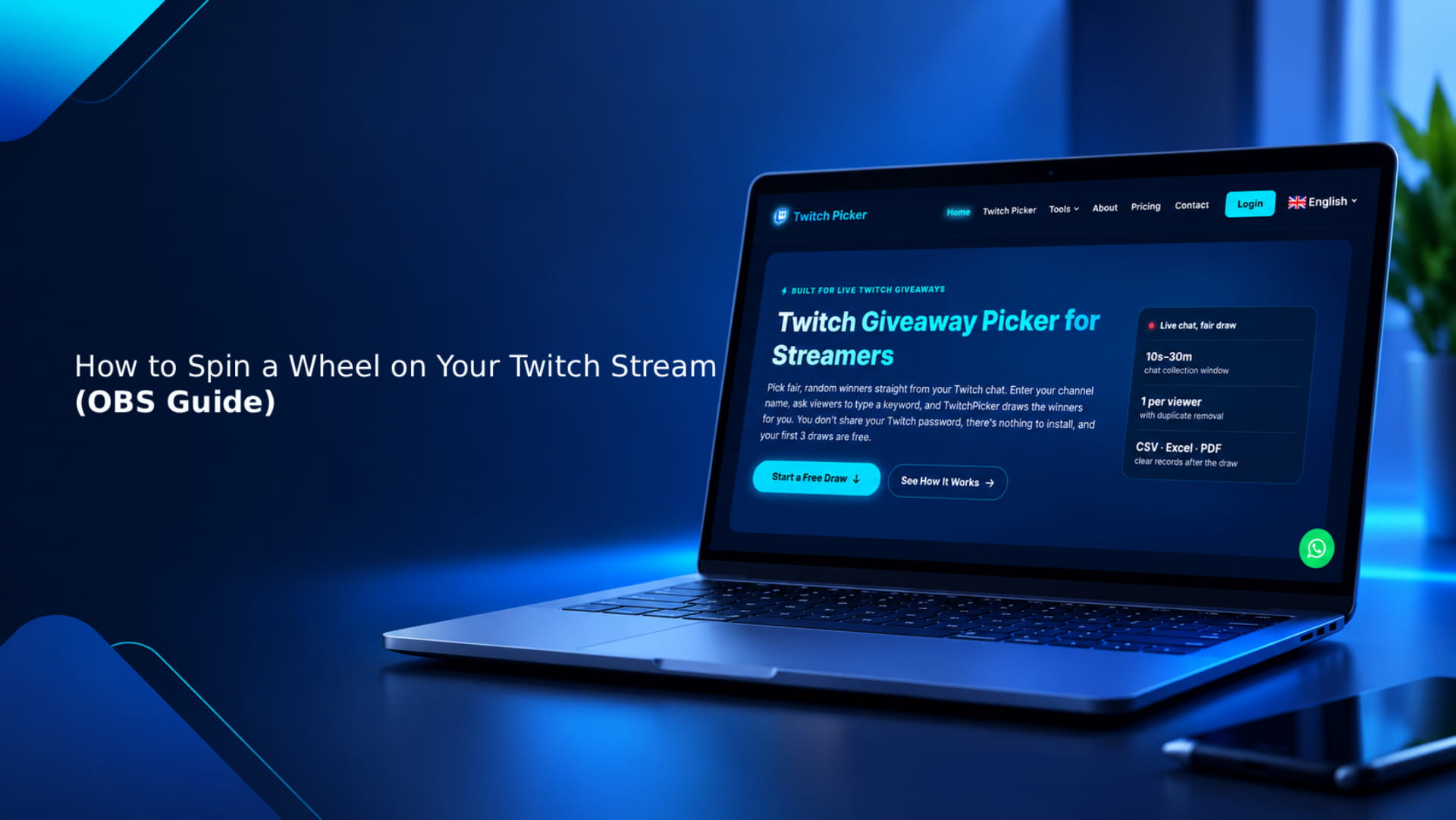
How to Spin a Wheel on Your Twitch Stream (OBS Guide)
If you're looking to spin the wheel twitch style, you've probably noticed that a chat bot announcing a winner just doesn't land the same way. A name appearing in a text line asks viewers to read; a wheel spinning across the screen asks them to watch, and watching is what keeps someone from tabbing away mid-stream.
The setup is genuinely quick: load names into a wheel, drop it into OBS as a browser source, and spin it on stream. The rest of this guide walks through doing that step by step, plus a few ways streamers actually use it beyond giveaways.
Setting Up a Spin Wheel for Your Stream
1. Open a wheel and load your entries
TwitchPicker's wheel picker opens straight in the browser, no account needed to try it. Type or paste in a list of names, prizes, or options, one per line. For a giveaway, that's your entrants; for a decision wheel, that's your options, like the games in your backlog.
2. Add it to OBS as a browser source
In OBS, add a new Browser Source, paste in the wheel's page URL, and set the dimensions to match where you want it on screen, usually a square in a corner or center panel. The wheel updates live in the browser, so whatever you change on the page shows up in your scene without restarting the source.
3. Turn on sound and confetti
Most spin wheels, TwitchPicker's included, have a built-in tick sound as it spins down and a confetti burst when it lands. Leave both on for stream; the sound cues chat that something's happening even before they look at the screen, and the confetti gives the moment a clean visual payoff.
4. Test the spin before you go live
Run through one full spin before your stream starts. Check that the audio comes through your stream mix (not just your local speakers) and that the text is readable at your stream's resolution. A wheel with entries too small to read defeats the point of showing it on screen at all.
5. Reuse it for more than one segment
Once it's set up as a browser source, you can swap the entries between segments. Load viewer names for a giveaway in one spin, then swap in game titles for a "what do we play next" vote later in the same stream.
What Streamers Actually Spin the Wheel For
- Giveaway winners. Load your filtered entry list, same as a chat picker, but spin instead of just displaying a name. It's a visual upgrade on the exact same fair draw.
- Yes-or-no calls on stream. When chat's split on whether you should take a fight or skip it, a quick spin on the yes/no wheel settles it faster than a poll vote.
- What game to play next. Load your backlog or a shortlist chat voted on, and let the wheel make the final call so nobody can accuse you of just picking your favorite.
- Dares, challenges, or punishments. Load a list of challenges and spin it when a sub goal hits or a boss fight goes badly. It adds a bit of theater to moments that would otherwise just be you announcing a decision.
- Team or group assignments. For co-op segments, load viewer names and spin repeatedly to build teams, which feels fairer than you hand-picking who plays with whom.
Whatever you're using it for, the same setup carries over: load the list, keep it in OBS as a browser source, and let the spin do the work the tick sound and confetti already set up.
Frequently Asked Questions
Load your entries into a browser-based wheel, add it to OBS as a Browser Source with your scene dimensions, and spin it live. No extension or local install is needed.
Yes. Load your filtered, deduplicated entry list the same way you would for a chat draw, then spin instead of just displaying a result.
Yes, if you want numeric ranges or letter-based picks instead of names, TwitchPicker also has a dedicated number wheel and letter wheel built the same way.
Most browser sources cache the page. Right-click the source in OBS and refresh it, or reload the page in a normal browser tab first to confirm the entries saved before adding it back to OBS.
A well-built wheel weights every entry equally by default. Check the FAQ page if you want the details on how the randomization works under the hood.